> For the complete documentation index, see [llms.txt](https://docs.cremawork.com/llms.txt). Markdown versions of documentation pages are available by appending `.md` to page URLs; this page is available as [Markdown](https://docs.cremawork.com/v-4-cra/mui/sidebar-configuration.md).
# Sidebar Configuration
To change the sidebar selected menu color set you can directly select from the UI using the right setting icon
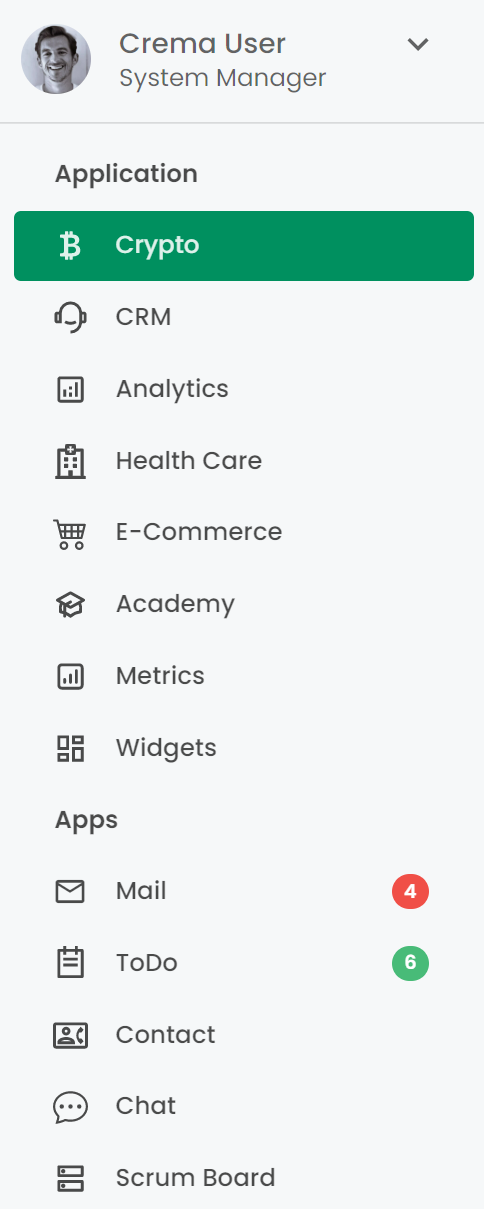 <==== 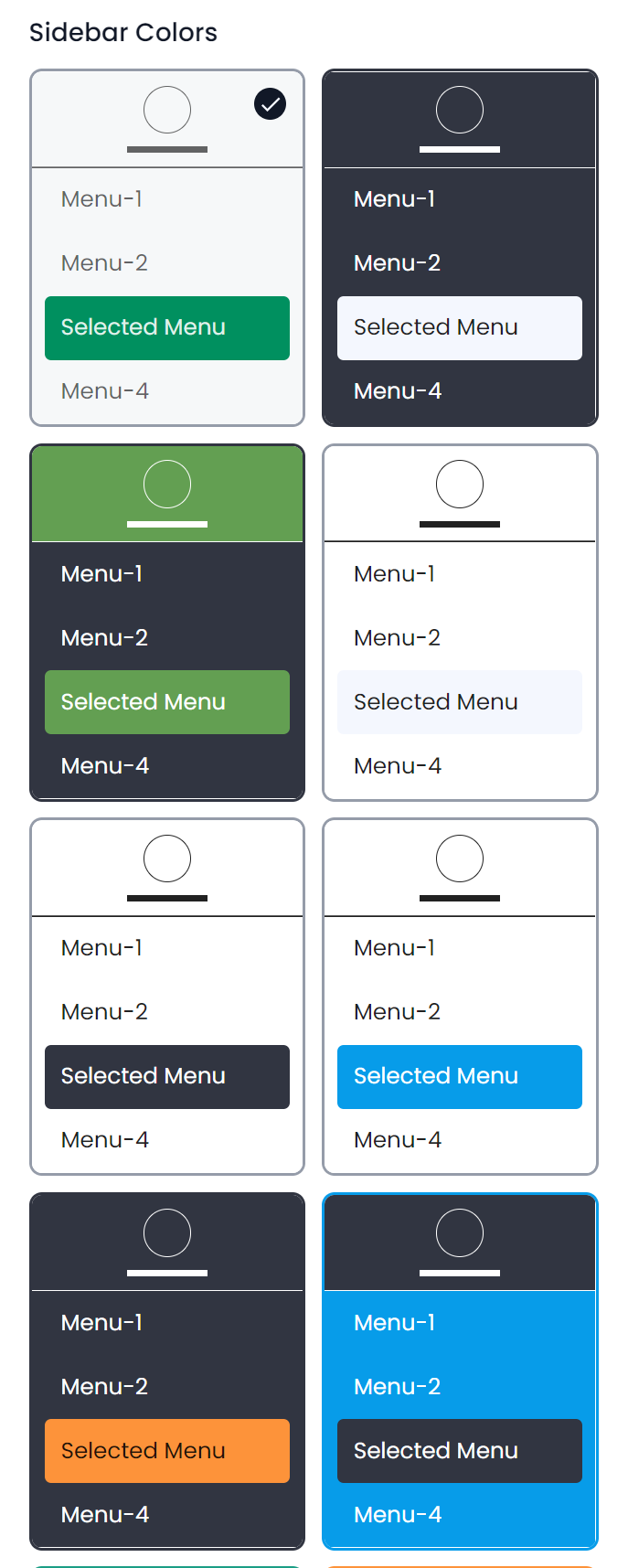 \
\
To set the new color theme of the left sidebar, you need to update the following param in the file `src/@crema/constants/defaultConfig.js`
\
\
To set the new color theme of the left sidebar, you need to update the following param in the file `src/@crema/constants/defaultConfig.js`
import { MenuStyle, ThemeMode } from './AppEnums';

export const DarkSidebar = {
  sidebarBgColor: '#313541',
  sidebarTextColor: '#fff',
  sidebarHeaderColor: '#313541',
  sidebarMenuSelectedBgColor: '#F4F7FE',
  sidebarMenuSelectedTextColor: 'rgba(0, 0, 0, 0.87)',
  mode: ThemeMode.DARK,
};

export const LightSidebar = {
  sidebarBgColor: '#fff',
  sidebarTextColor: 'rgba(0, 0, 0, 0.60)',
  sidebarHeaderColor: '#fff',
  sidebarMenuSelectedBgColor: '#F4F7FE',
  sidebarMenuSelectedTextColor: 'rgba(0, 0, 0, 0.87)',
  mode: ThemeMode.LIGHT,
};

const defaultConfig = {
  sidebar: {                        // update sidebar configuration according
    borderColor: '#757575',         // to your requirement
    menuStyle: MenuStyle.DEFAULT,
    allowSidebarBgImage: false,
    sidebarBgImageId: 1,
    colorSet: LightSidebar,
  },
  ...
};
In the sidebar object, we have a **colorSet** object of the sidebar theme configuration. The color set has "mode" properties to differentiate between light and dark sidebar
```javascript
import { MenuStyle, ThemeMode } from './AppEnums';
export const DarkSidebar: SidebarData = {
sidebarBgColor: '#313541',
sidebarTextColor: '#fff',
sidebarHeaderColor: '#313541',
sidebarMenuSelectedBgColor: '#F4F7FE',
sidebarMenuSelectedTextColor: 'rgba(0, 0, 0, 0.87)',
mode: ThemeMode.DARK,
};
export const LightSidebar: SidebarData = {
sidebarBgColor: '#fff',
sidebarTextColor: 'rgba(0, 0, 0, 0.60)',
sidebarHeaderColor: '#fff',
sidebarMenuSelectedBgColor: '#F4F7FE',
sidebarMenuSelectedTextColor: 'rgba(0, 0, 0, 0.87)',
mode: ThemeMode.LIGHT,
};
```
If we want to enable the sidebar background image we need to set **isSidebarBgImage: true**. \
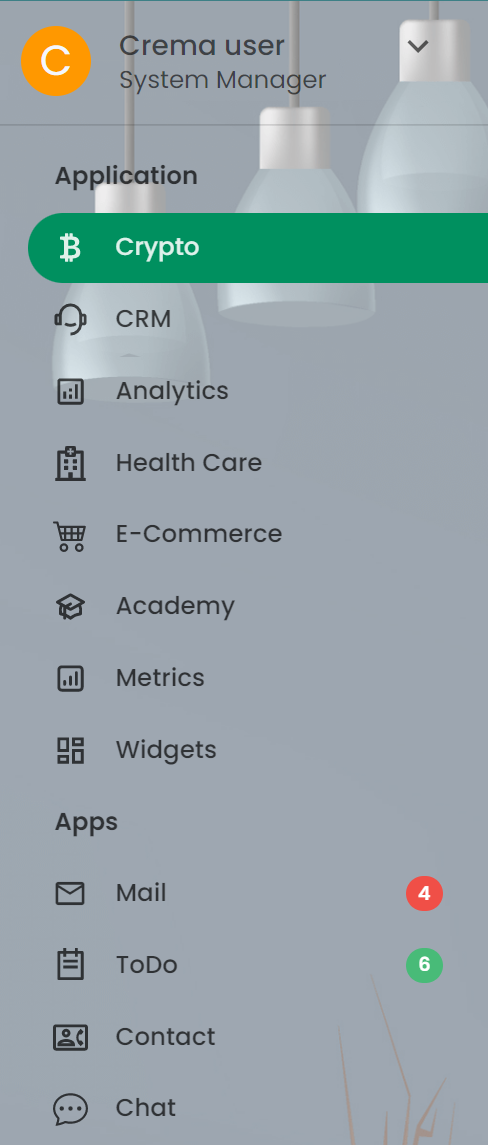 <==== 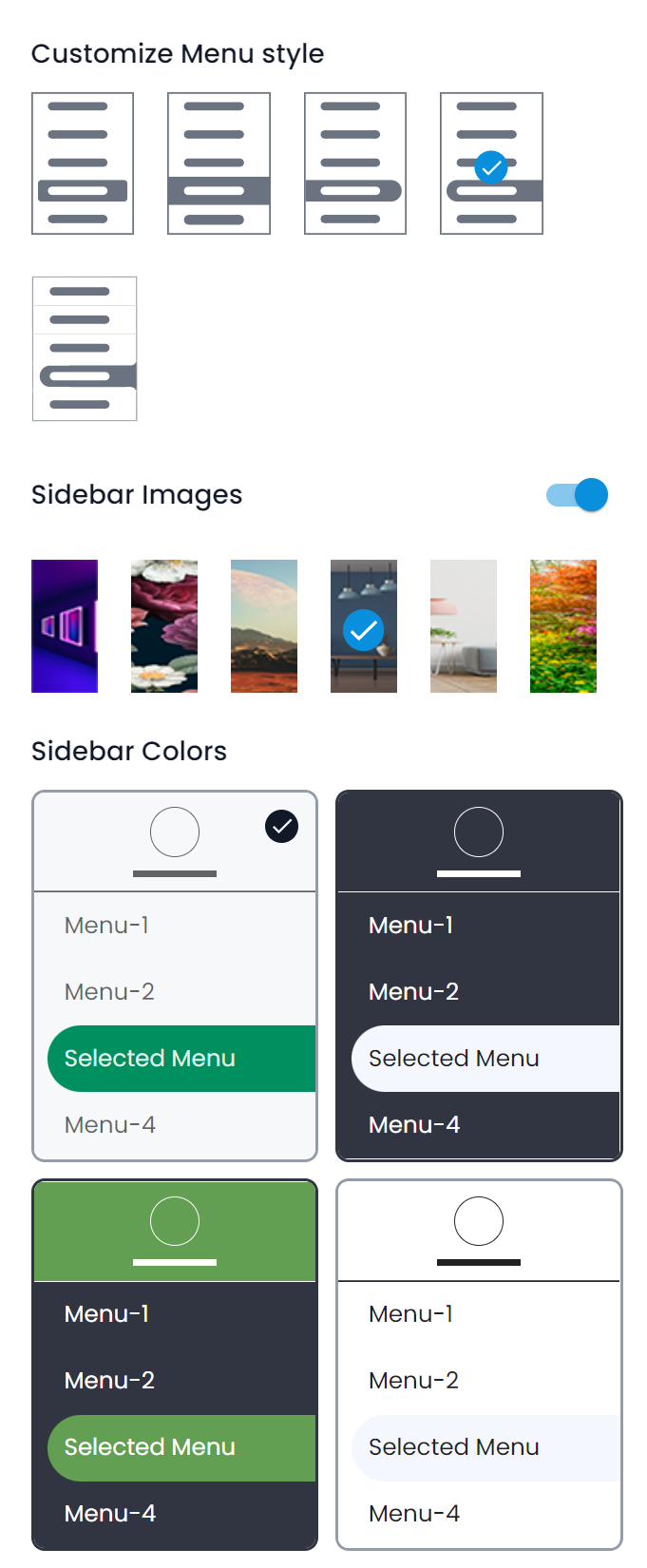\
\
If we need to change the image of the background then we need to update the following object values below in `src/@crema/constants/defaultConfig.js`
```
const defaultConfig = {
sidebar: {
...
allowSidebarBgImage: true, // set this flag to true to allow sidebar bg image
sidebarBgImageId: 1, // update image id according to your choice
},
...,
}
```
You can set your different image set in this **sidebarBgImages** object in the `src/@crema/mockapi/fakedb/navigationStyle.js`
```javascript
export const sidebarBgImages = [
{
id: 1,
image: "/assets/images/sidebar/thumb/1.png", // image name should be same as id
},
...
];
```
In case you want to change the selected menu style then you need to update **menuStyle**. `src/@crema/constants/defaultConfig.js`
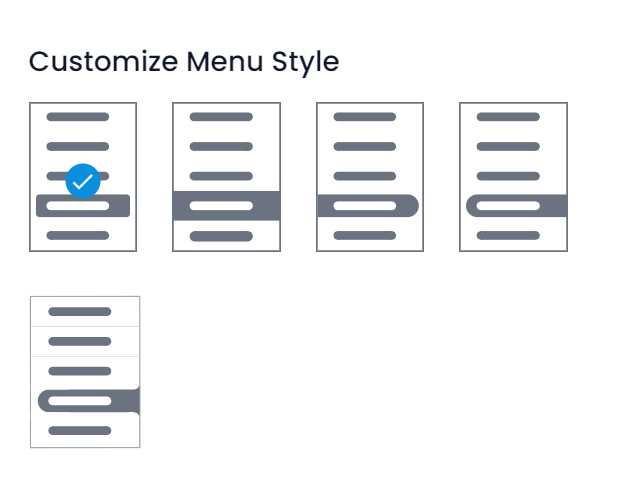
```javascript
const defaultConfig = {
sidebar: {
...
menuStyle: MenuStyle.DEFAULT, // Change Menu style according to your requirement.
...
},
...
}
Here is the menu style for other options.
export enum MenuStyle {
DEFAULT = "default",
STANDARD = "standard",
ROUNDED = "rounded",
ROUNDED_REVERSE = "rounded-reverse",
CURVED_MENU = "curved-menu",
}
```